Appearance
Start in Payload Lab
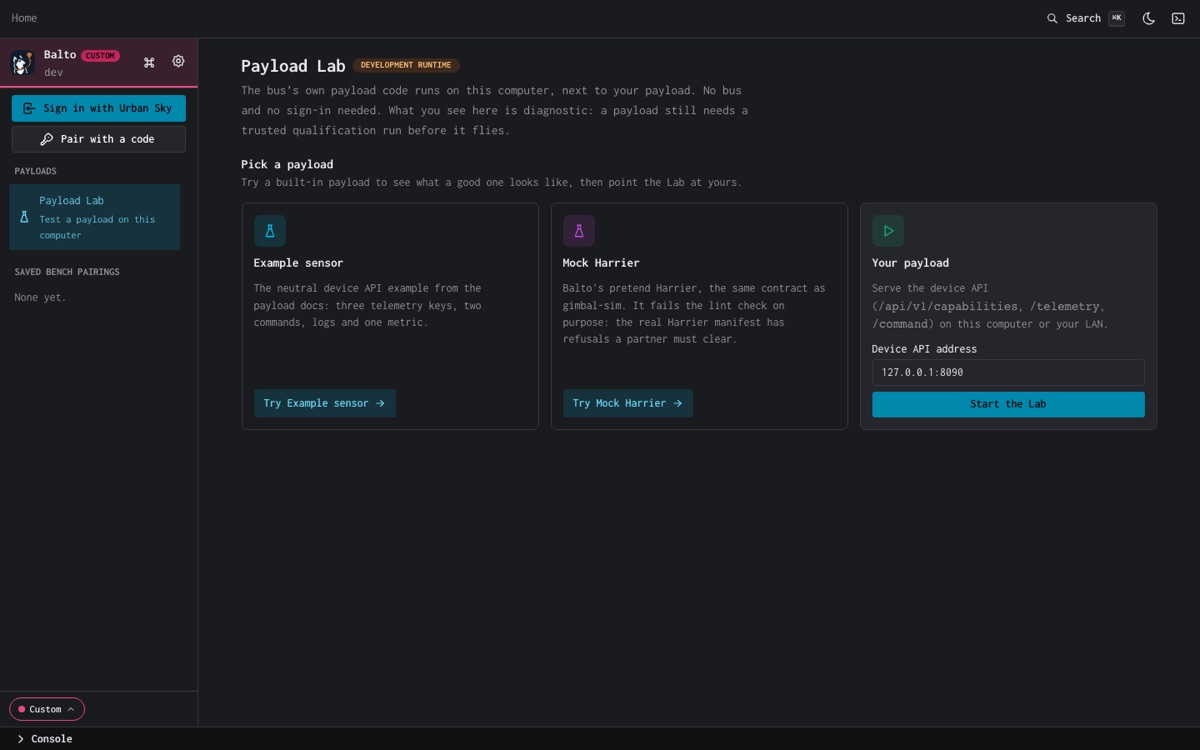
Payload Lab runs the bus's own payload code on your computer, next to your payload. You see what a bus would do with every request your payload makes, with no bus, no balloon and no Urban Sky account. Use it for most of your development. Move to a real bus for power, timing and flight checks.
What the Lab is
The Lab runs husky-bus-api's payload code (the same code the bus runs in flight) and the announcer's telemetry gate as one program on your computer, called the Lab runtime. Balto starts it, points it at your payload, and shows each exchange.
| The Lab tells you | The Lab cannot tell you |
|---|---|
| Whether the bus can parse your capability document, and any lint refusals | Whether Mission Control (MC) accepts the telemetry. MC checks more. It is not tested. |
| Which telemetry keys the announcer would forward, and why it drops others | Power, timing, heat or radio behavior |
| How the bus checks each command before it sends it, and your ack | Anything about the flight link: bandwidth, loss, Starlink or radio limits |
| Whether your logs and metrics stay inside the ingest limits | Whether your payload is approved to fly |
| Whether your payload comes back after it stops answering |
Diagnostic only
A Lab result is evidence, not flight approval. Before a new payload flies, Urban Sky runs a trusted qualification on a real bus. See Go to flight.
1. Install Balto
Balto runs on macOS and Linux. Urban Sky sends you an install link. Check it:
bash
balto versionPayload Lab ships in the Balto releases after 5.1.0-rc.23. If balto version prints rc.23 or older, run balto update.
On first start, Balto shows Welcome to Balto. Choose Test a payload (no account). Balto finishes setup and opens Payload Lab. You can sign in later from the sidebar, and Payload Lab stays in the sidebar either way.
Pending
Partner invites, so you can install Balto without an Urban Sky link, are not built yet. Ask Urban Sky for the install link.
2. Install the Lab runtime
The first time you open the Lab, it asks for the runtime: Install the Lab runtime first.
Urban Sky sends you a lab-runtime file built for your computer. Install it from the Lab (Choose lab-runtime…) or from a terminal:
bash
balto lab runtime install ./lab-runtime
balto lab statusBalto keeps the runtime in $BALTO_HOME/lab-runtime. The Lab shows Development runtime while it runs a build nobody signed.
Pending
Signed runtime downloads are not built yet. Today the runtime is a development build from Urban Sky. Urban Sky staff build it in the ops repo with pnpm --filter @urbansky/husky-bus-api build:lab.
3. Try the Example sensor
Pick Example sensor and choose Try Example sensor. It is a working payload: an air sampler with three telemetry keys, two commands, logs and one metric. Watch what a good payload looks like before you point the Lab at yours.
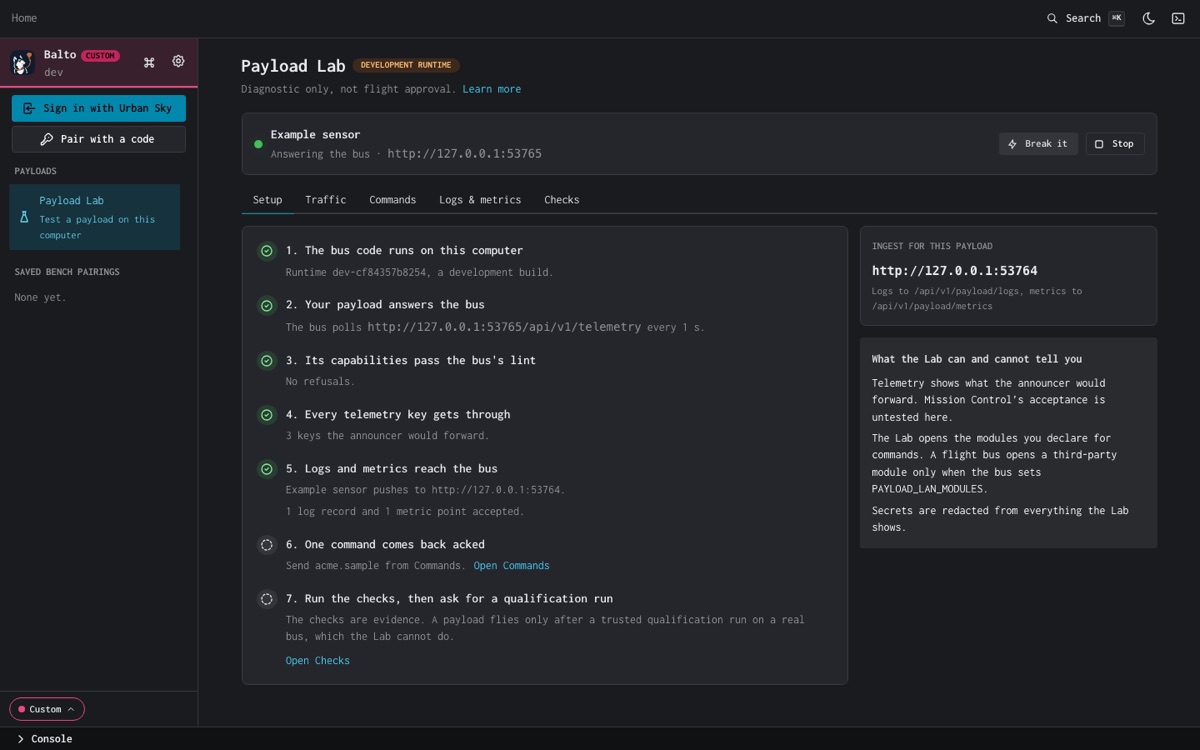
The Lab has five tabs:
| Tab | What it shows |
|---|---|
| Setup | Seven steps, each green when the Lab sees your payload do it. The Ingest for this payload box gives the logs and metrics URL. |
| Traffic | Every exchange, newest first: capabilities, telemetry, command, ingest. Pick one to see the request, the response and what the bus made of it. problems only hides the healthy ones. |
| Commands | Send a command the way MC would (Send as MC would), and see each ack. |
| Logs & metrics | What your payload pushed to the ingest, and what the ingest kept or dropped. |
| Checks | Five diagnostic checks and the diagnostic report. See Run the Lab checks. |
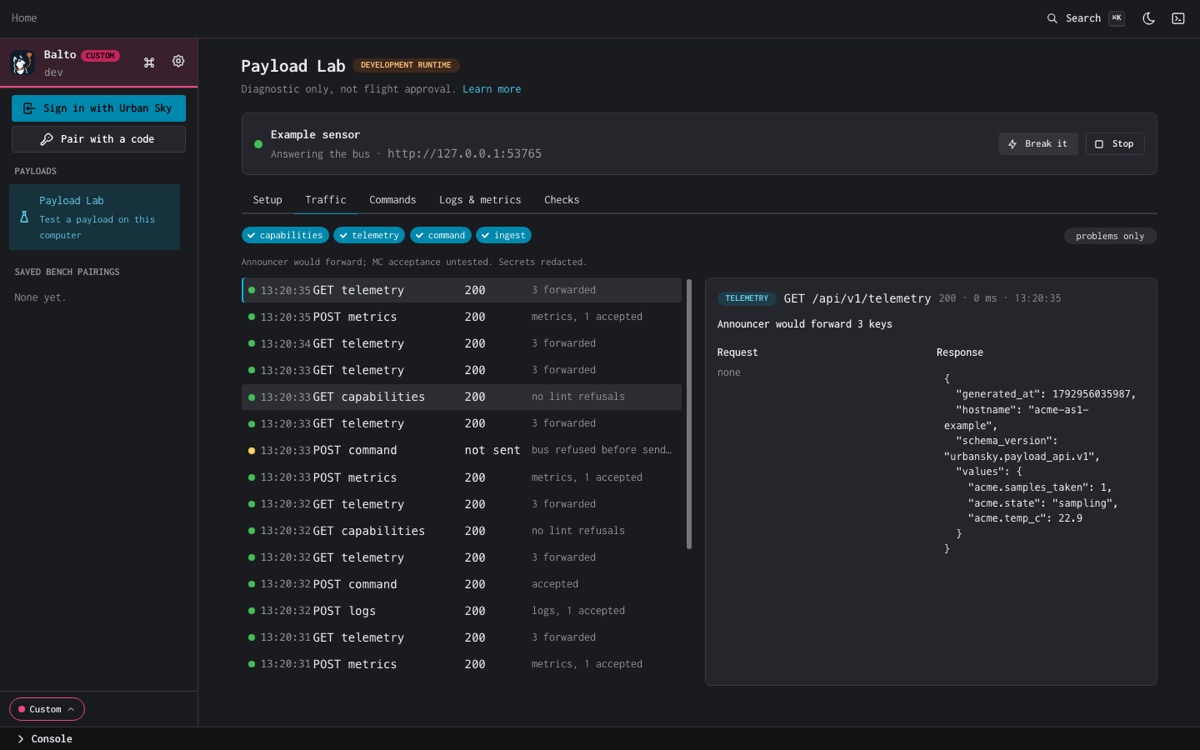
The Example sensor is the same device as the docs example in sdk/examples/payload-device-api. Both serve the same capability document, capabilities.json, and Balto's tests check the Lab copy against it. Read server.js next to the Lab to see which code causes which exchange.
Mock Harrier is Balto's pretend Harrier camera, with the same contract as the real one. It fails the lint check on purpose: the real Harrier manifest has refusals a new partner must not copy.
4. Point the Lab at your payload
Run your payload on your computer, or on your LAN where your computer can reach it. Start with the example if you have nothing yet:
bash
cd sdk/examples/payload-device-api
node server.jsIn the Lab, under Your payload, enter the device API address (127.0.0.1:8090 for the example) and choose Start the Lab.
For logs and metrics, push to the URL in Ingest for this payload on the Setup tab. The port changes each session, so set it per run:
bash
USKY_BUS_INGEST_URL=http://127.0.0.1:<port from Setup> node server.jsThe SDK's PayloadTelemetry reads USKY_BUS_INGEST_URL too.
If Setup step 2 says Nothing listens there. Start your payload, or check the port., the Lab reached the address but nothing answered on that port.
From a terminal
balto lab up does what the Lab page does and prints each exchange:
bash
balto lab up --mock example --for 2m
balto lab up --payload 127.0.0.1:8090 --send acme.sample --params '{"seconds":5}' --report lab-report.json
balto lab verify lab-report.json| Flag | What it does |
|---|---|
--payload ADDR | Your payload's device API address. |
--mock example|harrier | A built-in payload instead. |
--for D | Stop after this long and print the checks. Default: until Ctrl-C. |
--send CMD, --params JSON | Send one command once the payload answers, the way MC would. |
--fault silent,badType,floodLogs | Built-in payloads only: start with these faults on. |
--json | Print each runtime event as a JSON line. |
--report FILE | Write a signed diagnostic report when the Lab stops. |
Pending
balto lab watch, send, check and report as separate commands, and --json on every Lab command, are not built yet. So are recent sessions, pausing Traffic, and copy as curl.
On a real bus: PAYLOAD_LAN_MODULES
The Lab opens commands for every module your capability document declares. A flight bus does not. It forwards commands for a third-party module only when Urban Sky has named that module in the bus's PAYLOAD_LAN_MODULES. Telemetry works without it. Before you test commands on a bench bus or a flight bus, ask Urban Sky to add your module.
Check it worked
- The Example sensor shows Answering the bus, and Setup steps 1 to 6 are green.
- Your own payload reaches at least Setup step 3: Its capabilities pass the bus's lint.